Deploy an Application
Learn how to configure, deploy, and monitor an application to CloudHub from within the Quickintegration platform.
Configuration
- Navigate to Execute > Deploy.
- By default, the Applications tab opens, displaying configured applications and their current runtime statuses.
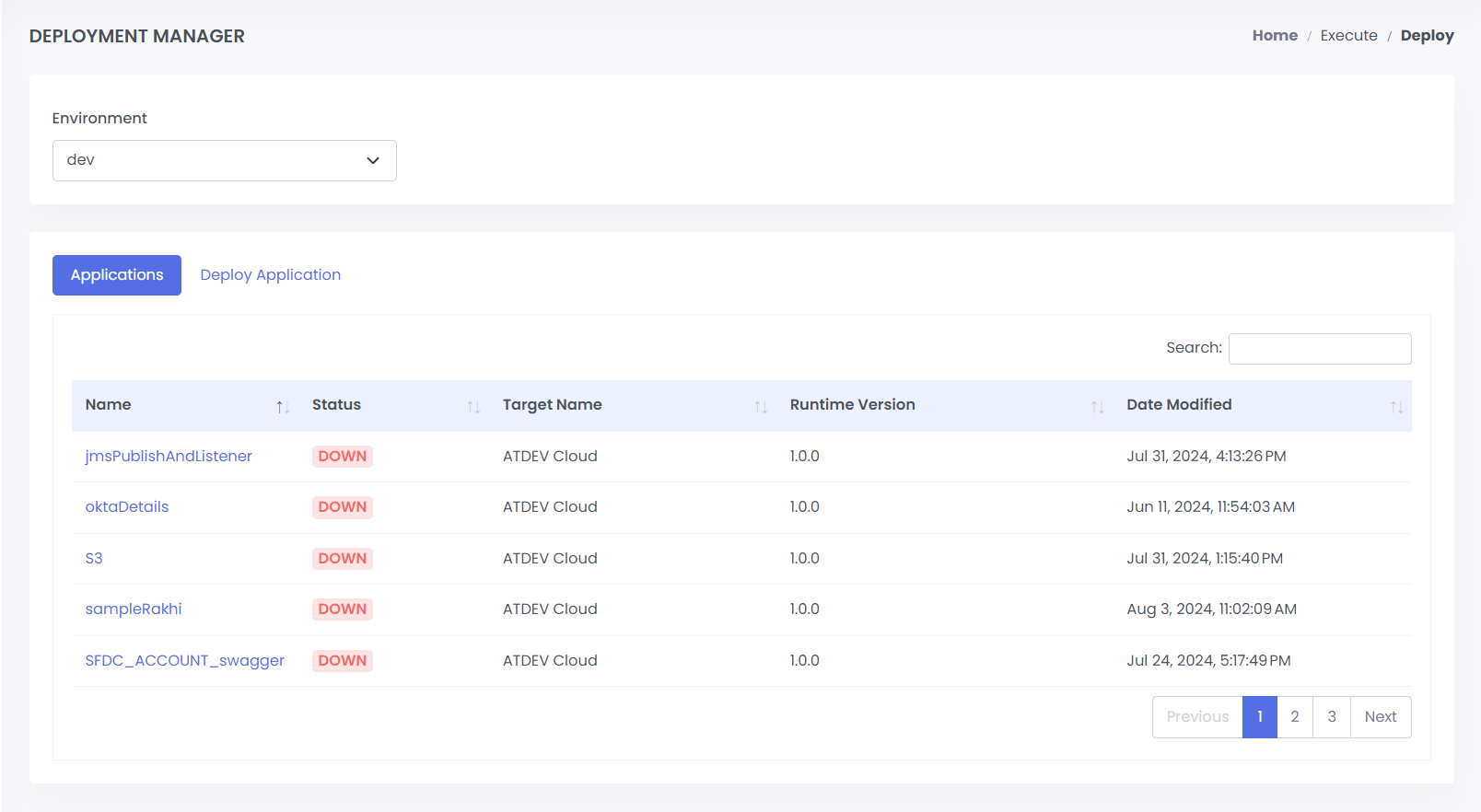
- Select the target Project Type:
- Integration (Default)
- MCP
- Agentic
- Select the target Environment from the dropdown to view or deploy applications in that workspace.
- Click the Deploy Application tab.
- Select your Project Name and target Build Version from the dropdown menus.
1. Runtime Resources
Adjust the allocated resources based on your workload requirements:
| Resource | Default | Available Options |
|---|---|---|
| CPU | 0.25 core | 0.25, 0.5, 1, 2 cores |
| Memory | 512 MB | 512 MB, 1 GB, 2 GB |
2. Properties & Security
- Open the Properties tab.
- Enter a Security Key to encrypt sensitive credentials (such as passwords and API keys) defined in connection properties.
- Edit any environment-specific properties as needed (e.g., server credentials, service monitoring toggles).
3. Logging & Data Masking
Open the Logging tab to configure runtime logs and sensitive data protection:
- Logging Level: Select the desired verbosity level for the application logs.
- Masking Patterns: Define regular expressions (regex) to mask specific string patterns. Click + to add multiple patterns.
- Masking Keys: Add sensitive keys whose values should be obfuscated. Click + to add multiple keys.
- All masked values are automatically replaced with asterisks (
*) in runtime logs.
Once you have reviewed all settings, click Deploy Application to finalize the deployment profile.
Start the Application
- Return to the Applications tab and click the name of your configured application.
- On the Application Details page, enter the Security Key specified during configuration.
- Click Start.
note
- The deployment process may take a few minutes to complete while the container provisions and starts.
- Credentials are encrypted during deployment only if the encryption option was enabled in Connection Properties.
- Applications deployed in non-production environments automatically stop after 30 minutes of runtime.
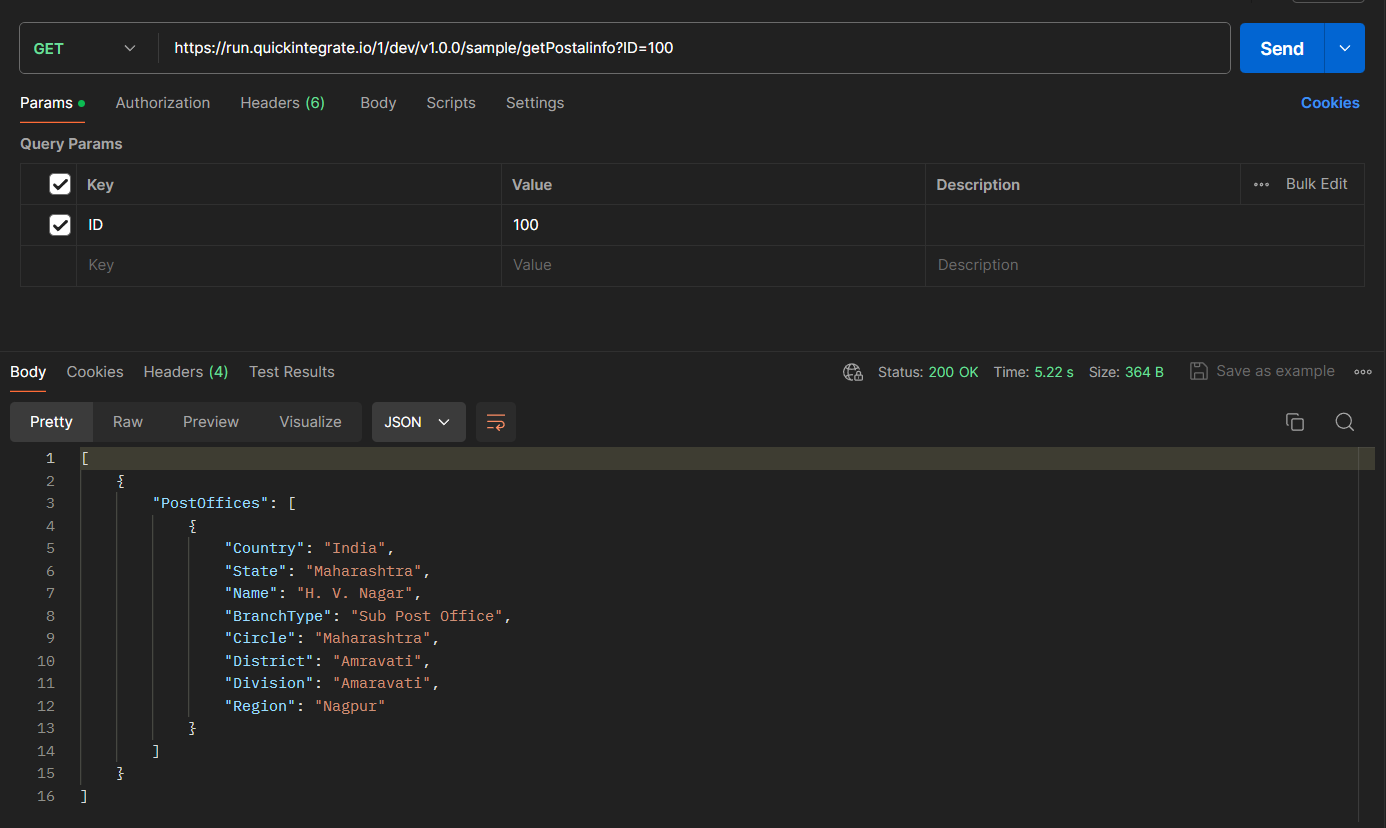
When the status updates to active, copy the Deployment URL from the Details tab to access your running service.
Verify with Postman
Send a test request to your Deployment URL using Postman to verify the deployment:
View Logs
Log Retention & Defaults
- By default, the Logs tab displays the last 250 log entries within the past 24 hours.
- Quickintegration retains application logs for 3 days.
Filter Logs
Use the filter controls at the top of the Logs panel to narrow down log streams:
- Line Count: Limit output to a specific number of lines.
- Time Window: Specify a Start and End date/time.
- Keyword Search: Filter entries by text query (note: searches are case-sensitive).