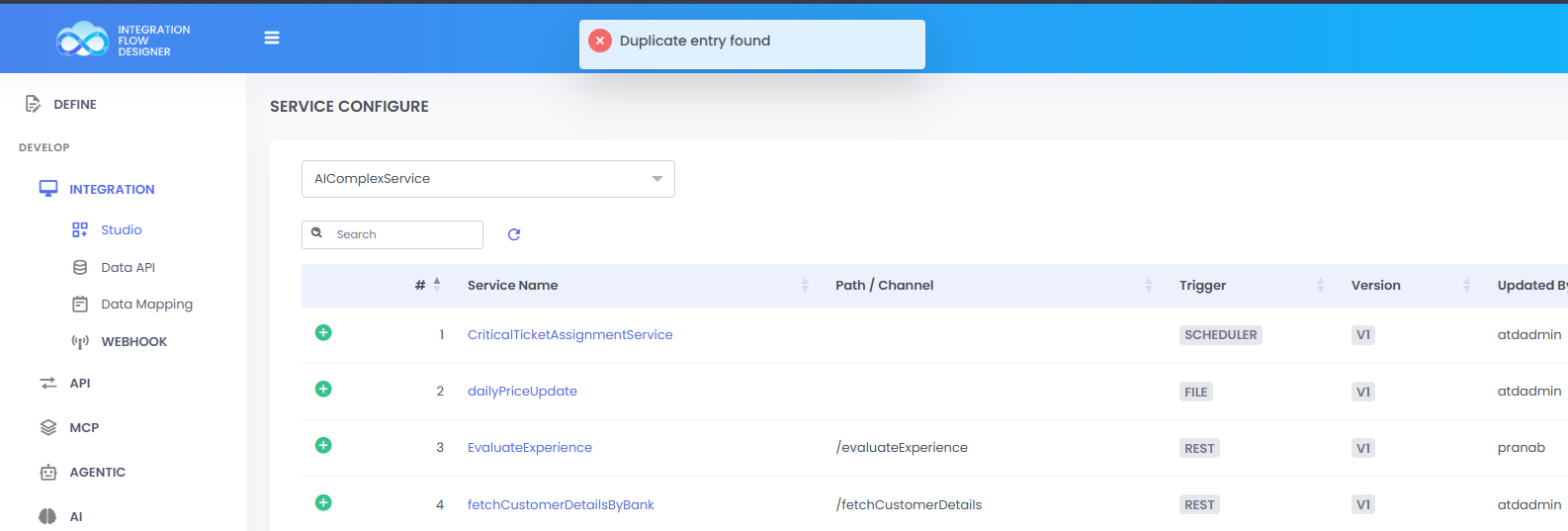
Studio
Utilize the drag-and-drop functionality to incorporate Core Integration development Components that efficiently manage a wide range of integration scenarios. These components cover triggers, transformers, connectors, processors, and data mappings, enabling flow invocation through REST, Events, Messages, Databases, Schedulers, Files, and Streams.
Step 1:
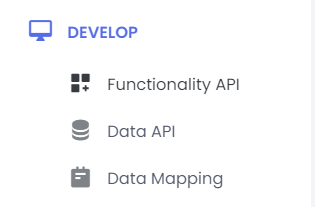
Go to DEVELOP >> Integration >> Studio
Step 2:
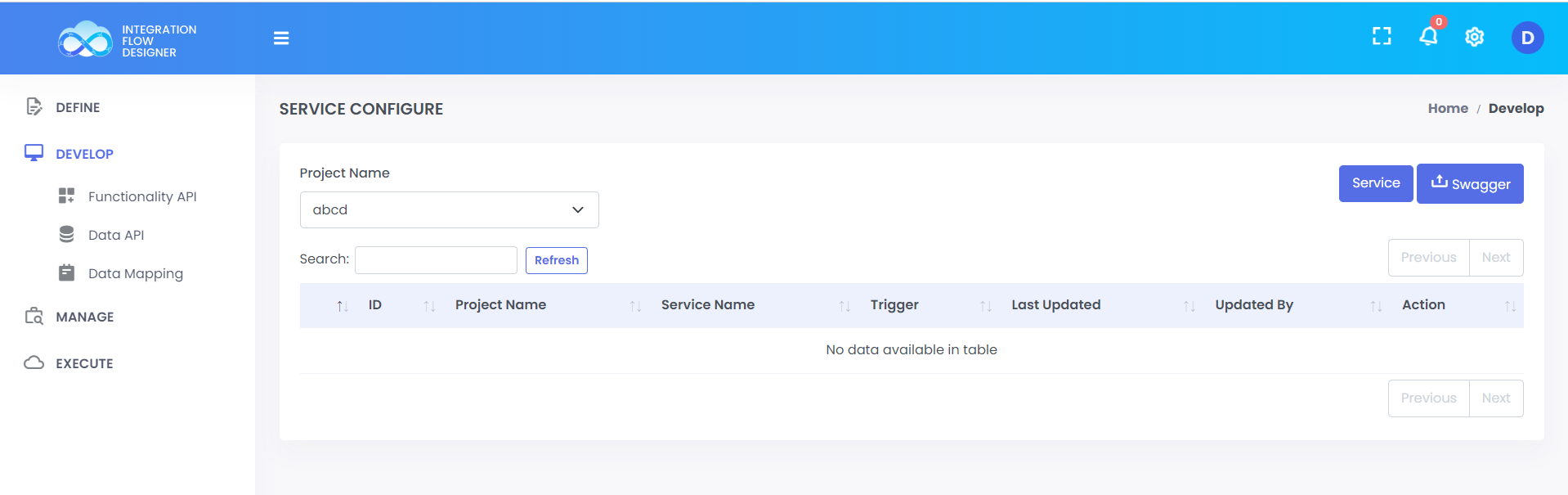
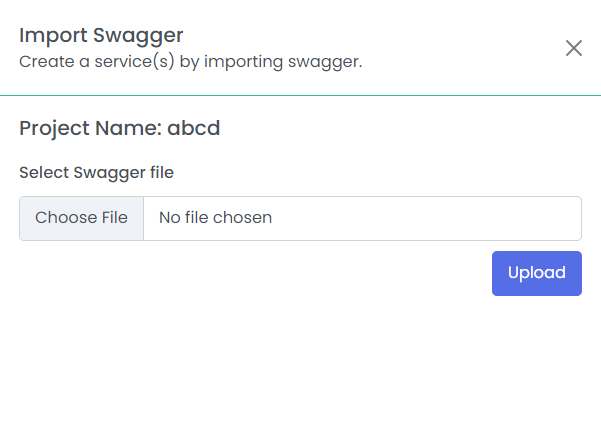
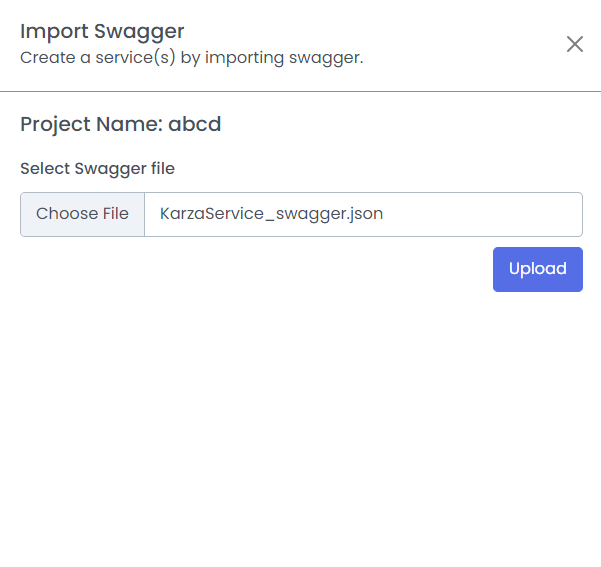
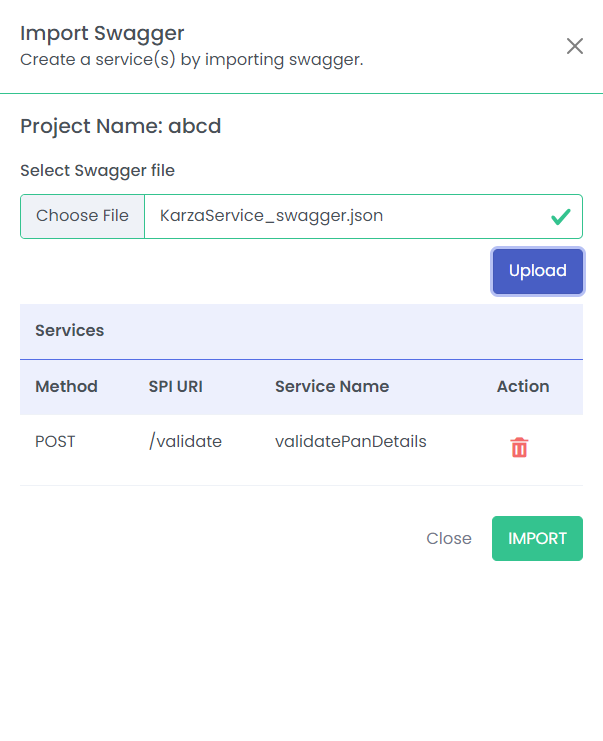
In Studio You can create the service and upload the swagger
Step 3:
Service
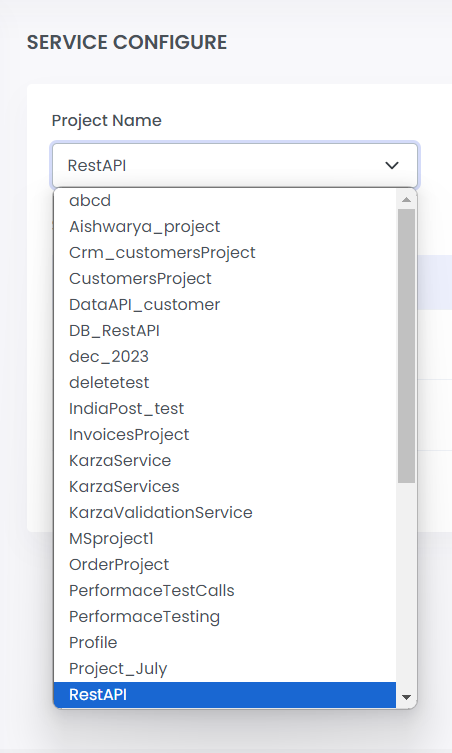
Select a project from the dropdown menu column to generate a Service within it
Step 4:
Click on the Service button, then proceed to create the service within. Specify the service name and select the trigger from the dropdown menu provided below.
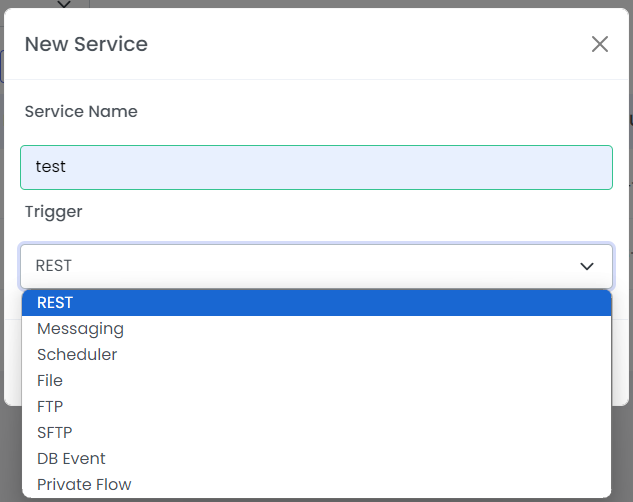
Step 5:
Once the service is created, you'll have the ability to implement your API.
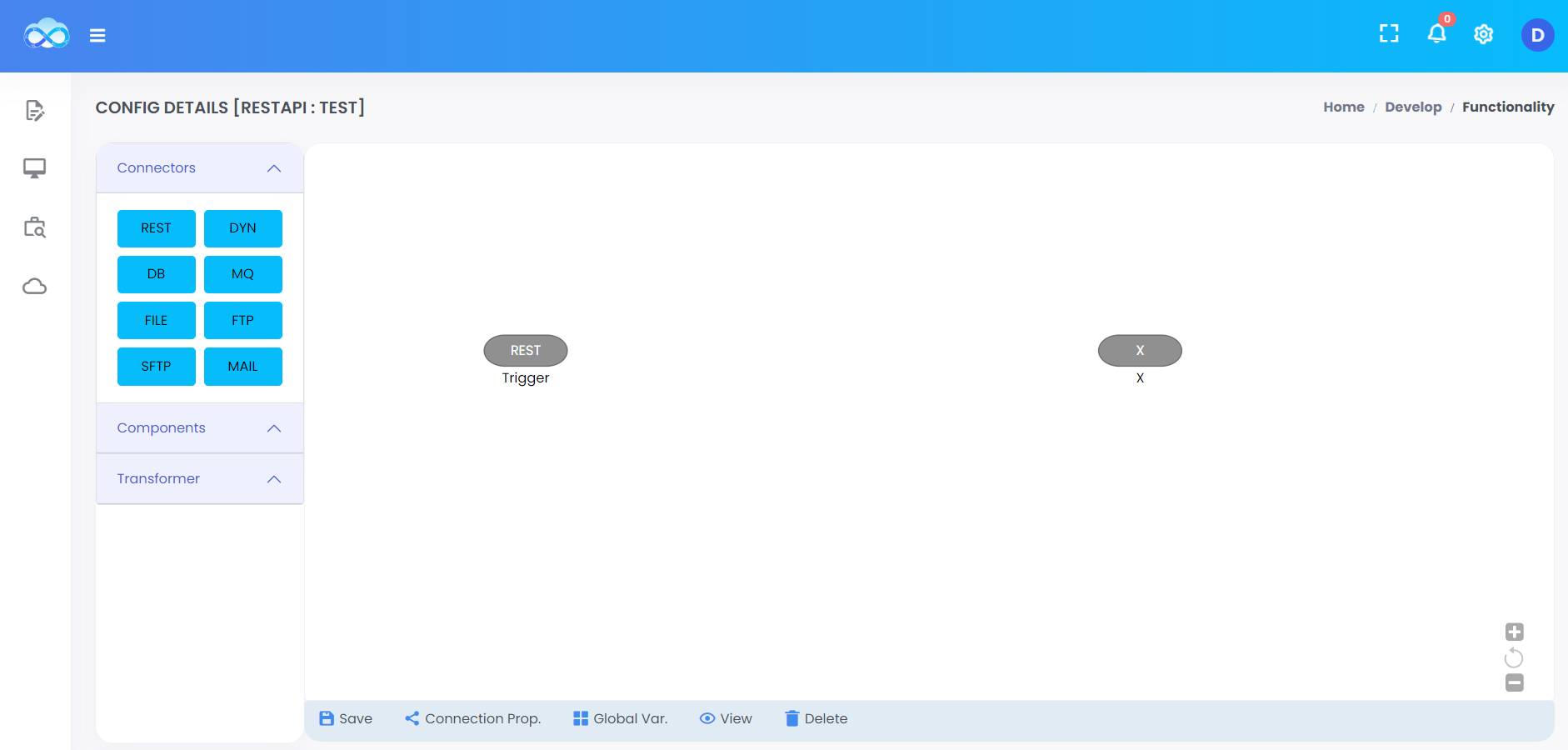
Swagger
Step 1:
Step 2:
Step 3:
Step 4:

Duplicate Service
The Duplicate Service feature allows you to replicate an existing service and its graphical flow (along with the underlying service JSON) into a target project. This avoids the time-consuming process of recreating complex flows from scratch.
Key Considerations & Technical Scope:
- What gets copied: The service graph, node layout, and underlying service JSON configuration are fully duplicated into the new service.
- What needs manual setup: Duplicating a service does not replicate external connection properties, environment resources, global variables, custom class code, or project dependencies. You must manually configure or bind these in the target scope/project after duplication.
- REST Endpoint Behavior: For services using a REST Trigger, the URL will automatically be prefixed with
/duplicate/followed by the original URL path.
Step 1:
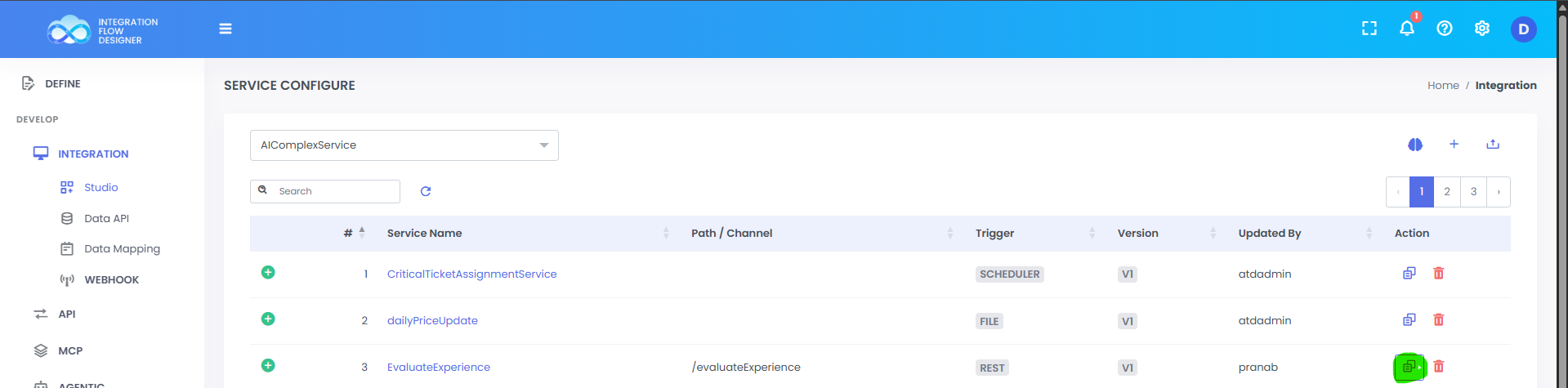
From the services list table in Studio, click the Duplicate button for the specific service you want to copy.
Step 2:
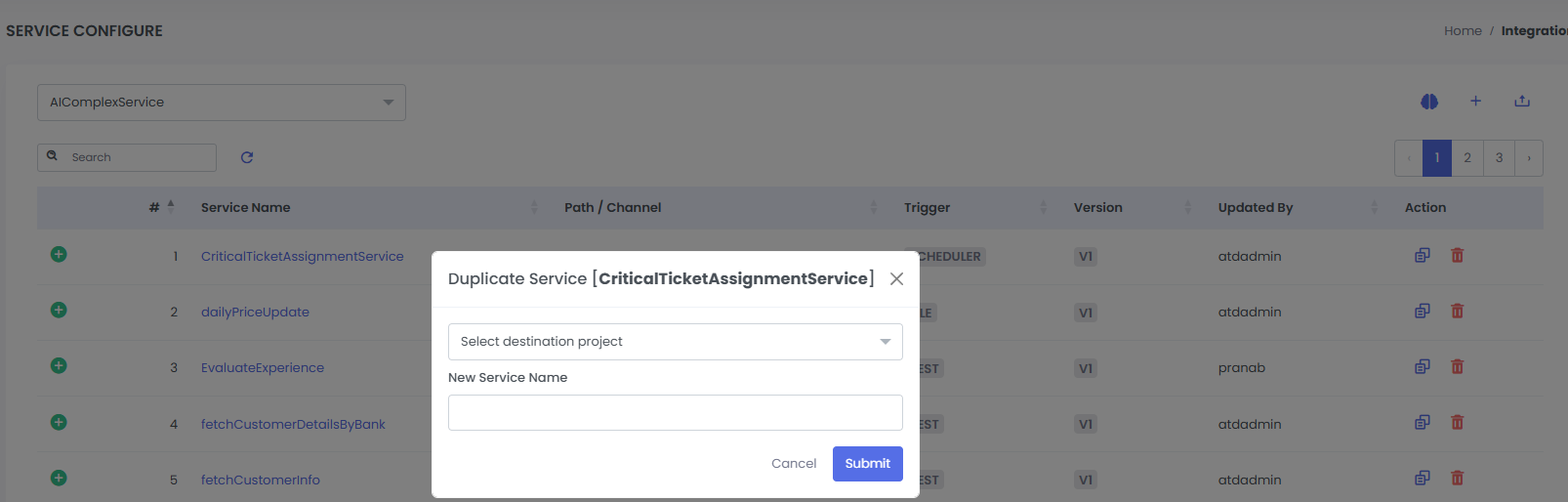
A modal popup will appear for the duplication configuration.
Step 3:
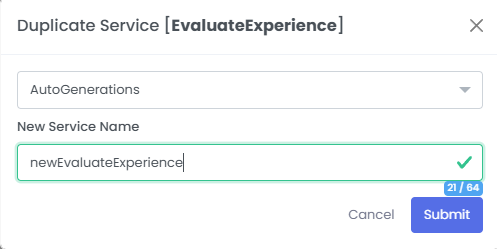
- Select the Target Project from the dropdown menu (you can choose the current project or a different one).
- Enter the Service Name in the input field (you can retain the original name or provide a new name).
- Once both fields are set, click Submit.
Step 4:
- Successful Duplication: If the service name is unique and not already taken within the target project, the service will be successfully created and the page will redirect to that target project workspace.
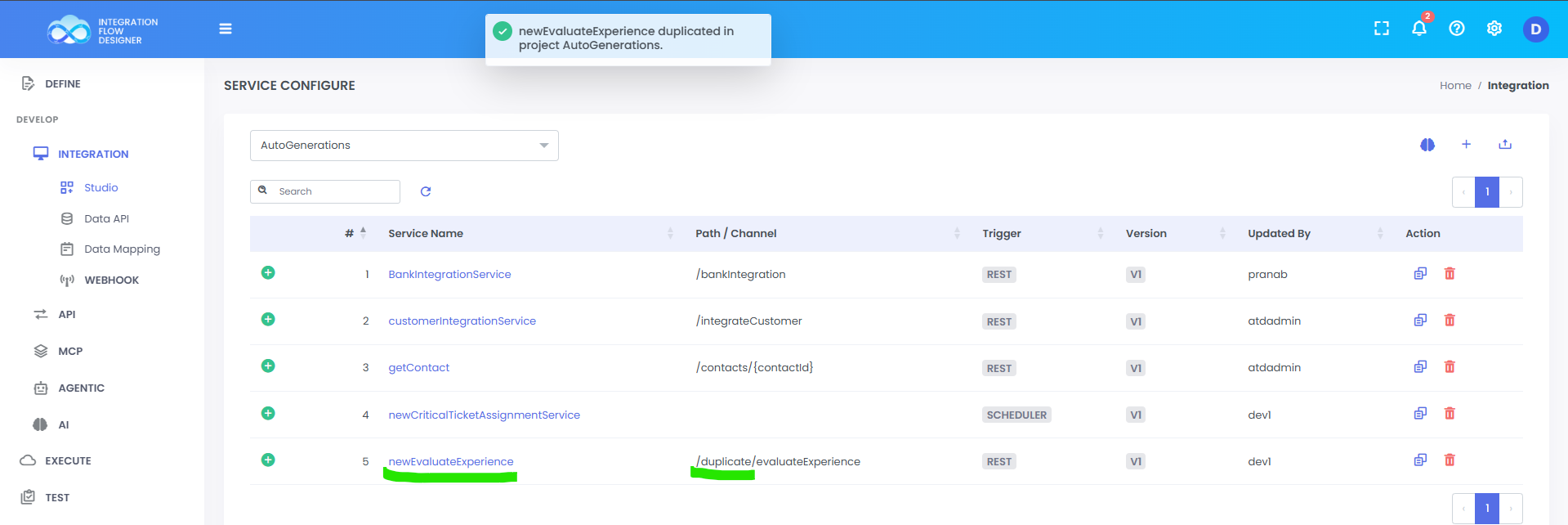
- Duplicate Error: If a service with that name already exists in the target project, an error alert will be thrown.