Studio
Agentic Studio combines integration triggers with built-in tools and AI capabilities, allowing you to create advanced agentic workflows, orchestrate multi-step tasks, and manage services equipped with both custom tools and standard integration triggers.
Navigate to the Agentic Studio:
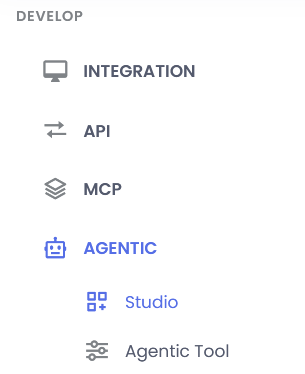
Go to DEVELOP >> Agentic >> Studio
Service & Tool Creation:
In Agentic Studio, you can create and configure services that integrate triggers, custom tools, and execution flows to power your agentic applications. Following are ways to create agentic services:
- Advanced AI service creator
- Manual creation
- Uploading a swagger file (For agentic tools only)

Agentic service creation using AI
- Select a project from the dropdown menu column to create an Agentic service within it.
- Click on the first button on the top right, write the description of the tool, and click generate service.
# Examples
## 1. Agentic service
Create an agentic service that will use vectorDB to get relevant documents using filter expressions and use tools to answer user query regarding employee records

## 2. Agentic tool
Create an agentic tool to get emplyee data from database using emloyee ID

- The service will be automatically created (it will take a few minutes to generate).
- After the service is created, click on the name of the service to open it in canvas. You can
- Edit the nodes
- Add connection properties
- Validate the service
Service creation manually
- Select a project from the dropdown menu column to create an Agentic service within it.
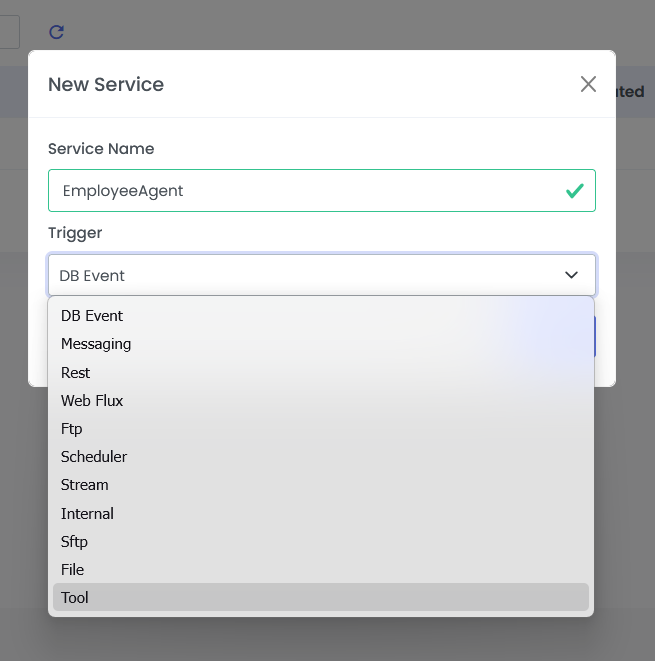
- Click on the plus button on the top right, specify the service name, and select the trigger from the dropdown menu provided.
- There are various trigger by which agentic service can be called
- Tool trigger will create agentic tool that can be called from the main agentic service
- After the service is created, click on it to open it in canvas, edit accordingly, and save the service.
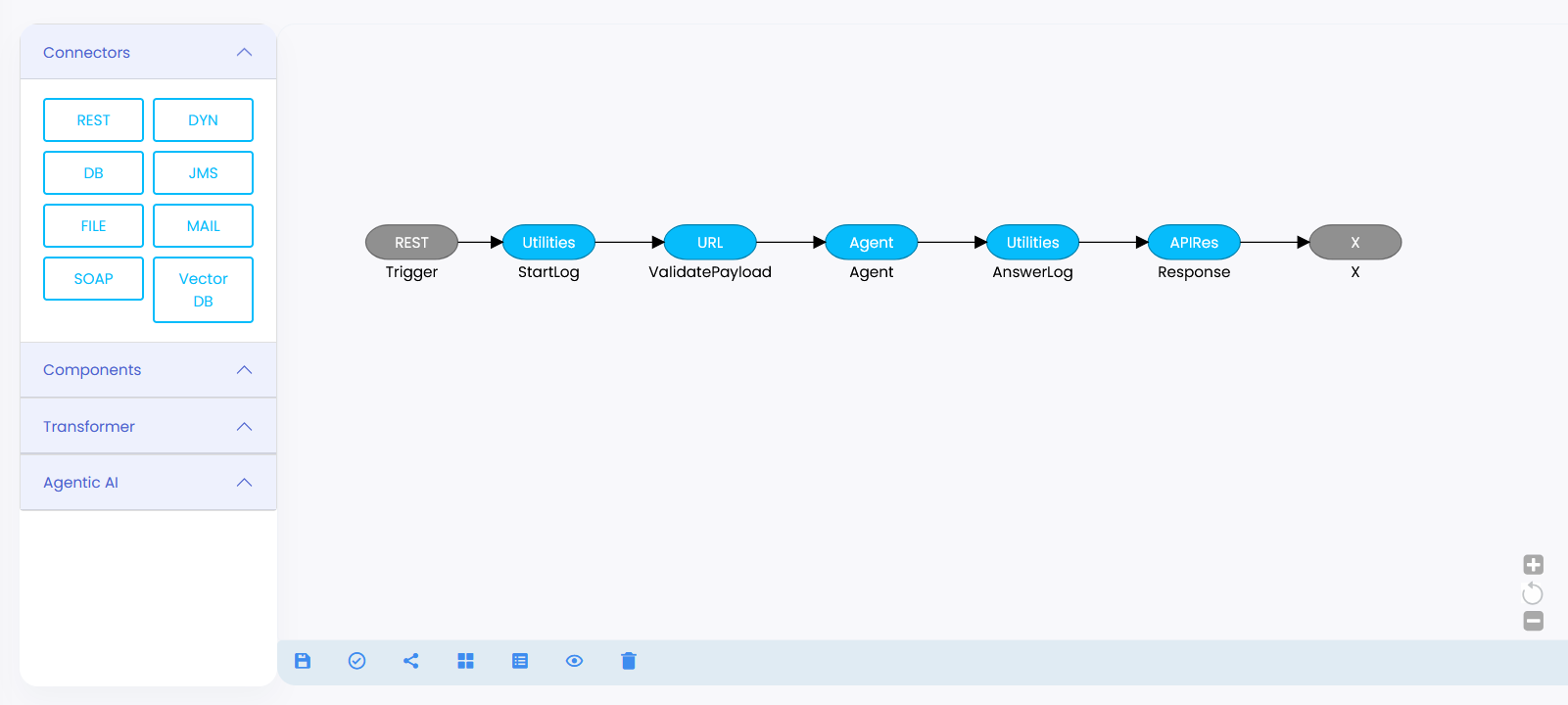
- Implement the agentic service logic using the connectors and components on the left panel by dragging and dropping them onto the canvas. To know more about canvas refer Core Development
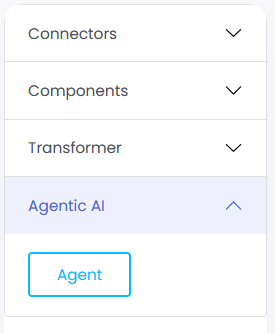
- On the left panel, inside Agentic AI section, drag and drop the Agent node to apply agentic feature to the current service
- Right click on the agent node to see available configurations
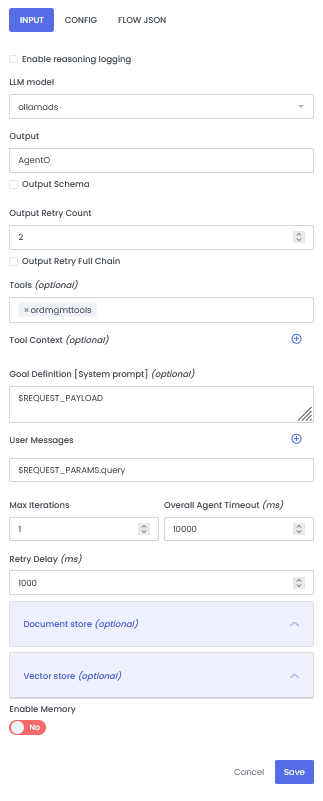
| Paramter name | Description |
|---|---|
| Enable reasoning logging | To show the reasoning of LLM in final output, if not selected thinking logic will not output |
| LLM model | Chat AI datasource name. To know how to configure Chat AI datasource refer Chat AI |
| Output | Name of the output variable where result will be stored |
| Output Schema | For structured output, provide the schema of the output |
| Output Retry Count | Retry count for the desired output |
| Output Retry Full Chain | To rerun the whole agentic process again with tool calling for desired output |
| Tools | Select already created agentic tools which will be used by the agent |
| Tool Context | static or dynamic contextual data that will be used by the tool |
| Goal Definition | The system prompt for the Agent |
| User Messages | User query for the Agent |
| Max Iterations | Maximum number of times the agent will go in the loop |
| Overall Agent Timeout | Maximum timeout for the agent request |
| Retry Delay | Retry delay duration |
| Document store | Name of the Document store datasource |
| Vector store | Name of the Vector store datasource |
| Enable Memory | Name of the chat memory datasource |
- You can add the nodes, configure connection properties, validate the tool service using the canvas properties. Once the desired tool is created, save the service
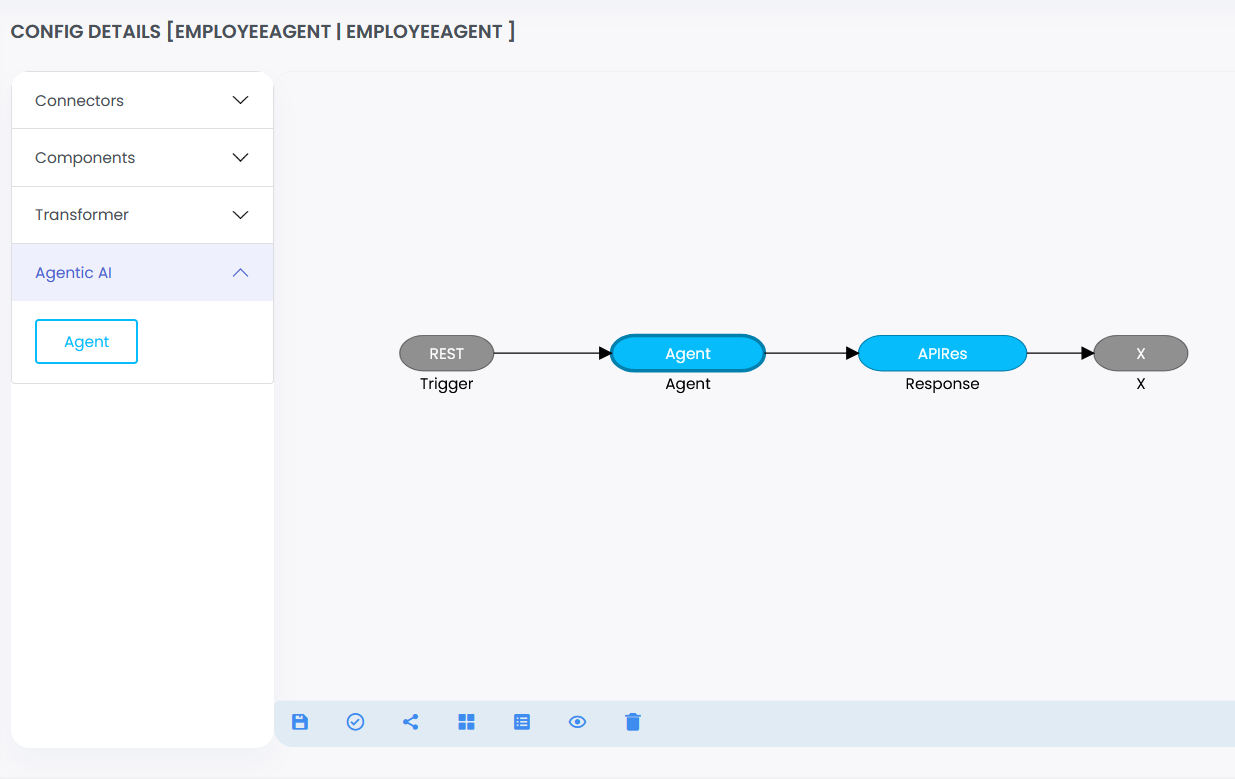
Agentic Tool creation by uploading swagger file
- Select a project from the dropdown menu column to create an Agentic tool within it.
- Click on the upload button on the top right, browse and select the swagger file, and click upload.
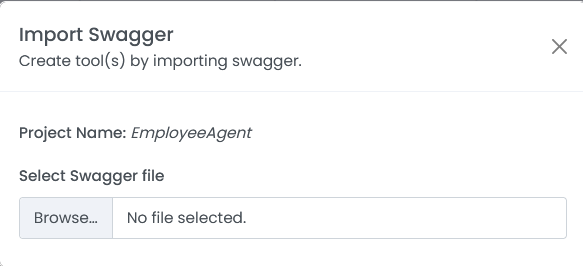
- Once the file is uploaded, the tools will be listed in the current project.
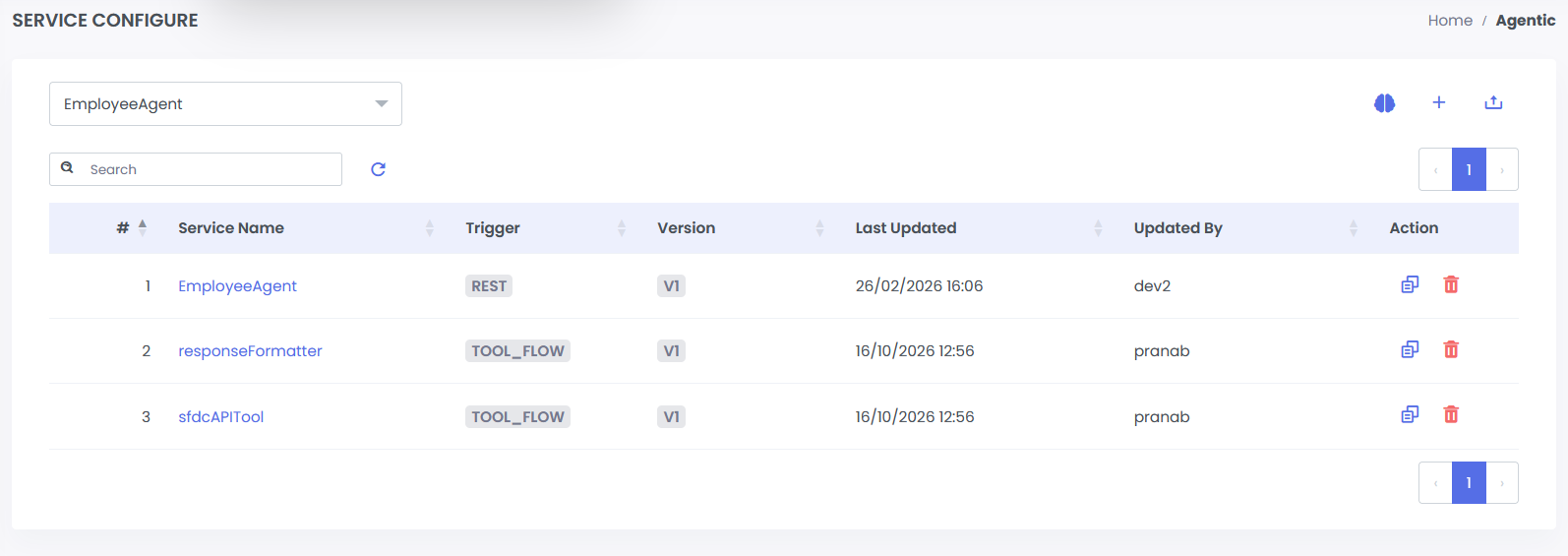
Duplicate Service
The Duplicate Service feature allows you to replicate an existing service and its graphical flow (along with the underlying service JSON) into a target project. This avoids the time-consuming process of recreating complex flows from scratch.
Key Considerations & Technical Scope:
- What gets copied: The service graph, node layout, and underlying service JSON configuration are fully duplicated into the new service.
- What needs manual setup: Duplicating a service does not replicate external connection properties, environment resources, global variables, custom class code, or project dependencies. You must manually configure or bind these in the target scope/project after duplication.
- REST Endpoint Behavior: For services using a REST Trigger, the URL will automatically be prefixed with
/duplicate/followed by the original URL path.
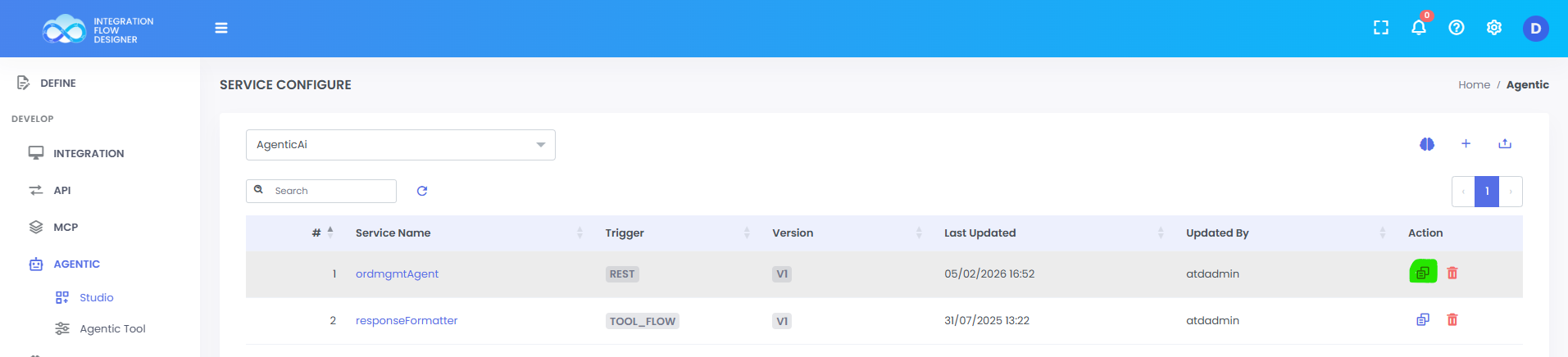
Step 1:
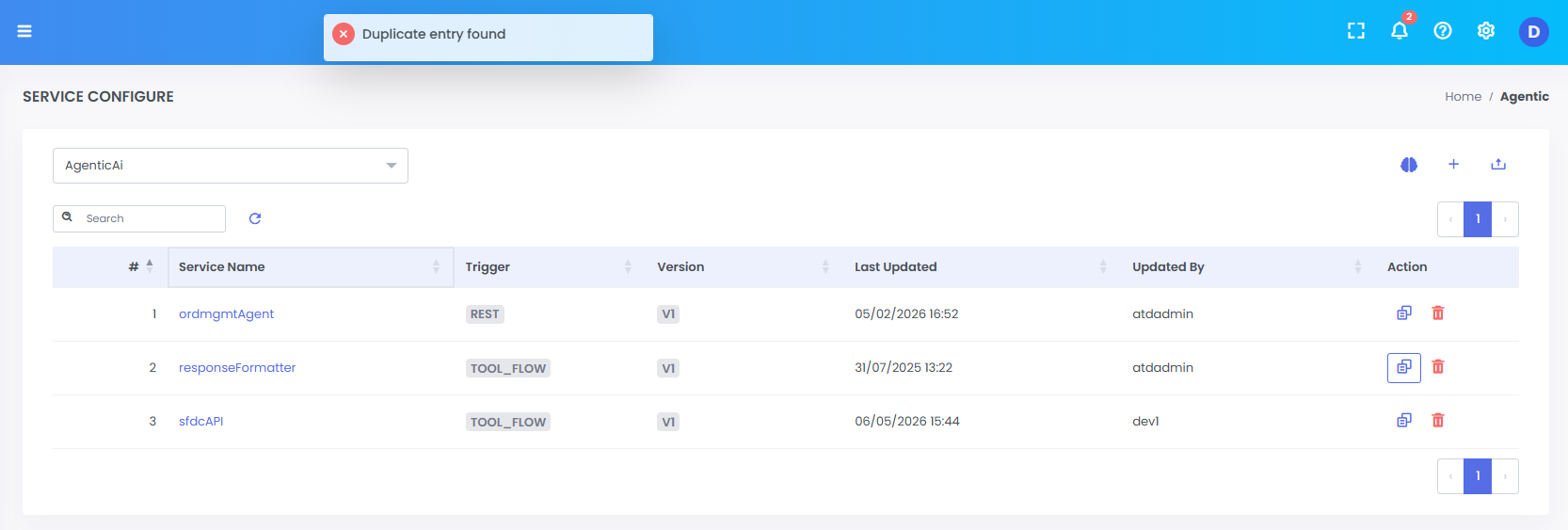
From the services list table in Studio, click the Duplicate button for the specific service you want to copy.
Step 2:
A modal popup will appear for the duplication configuration.
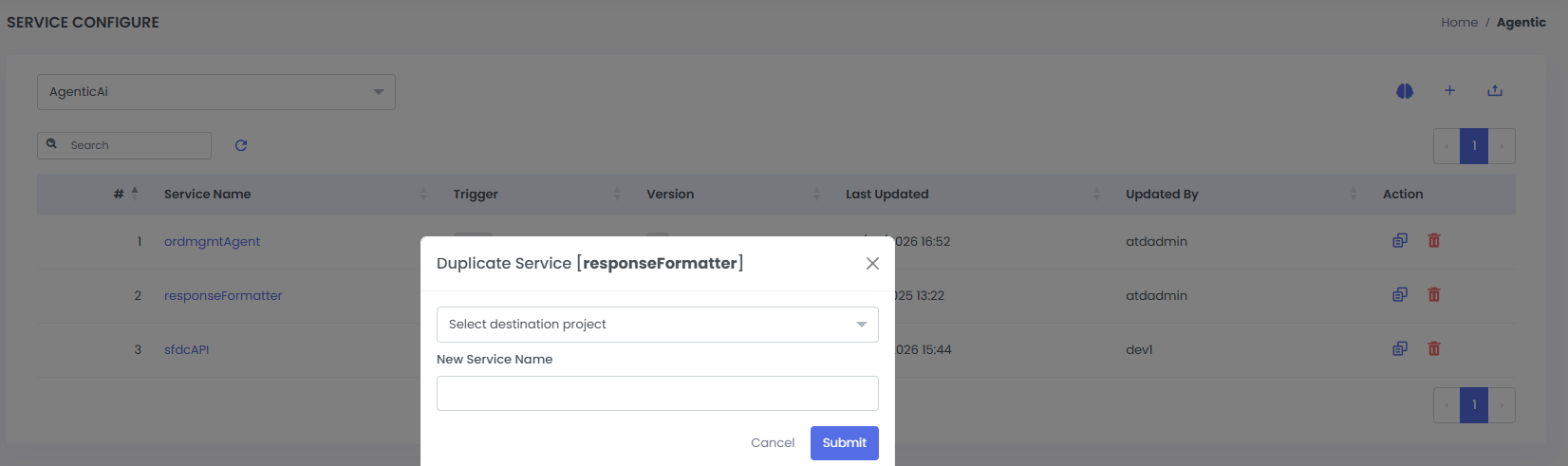
Step 3:
- Select the Target Project from the dropdown menu (you can choose the current project or a different one).
- Enter the Service Name in the input field (you can retain the original name or provide a new name).
- Once both fields are set, click Submit.
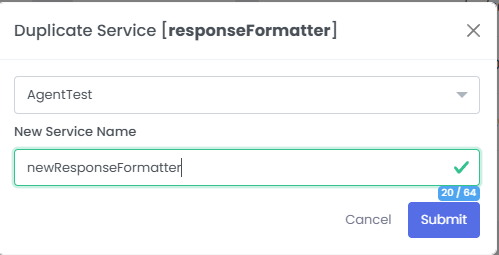
Step 4:
- Successful Duplication: If the service name is unique and not already taken within the target project, the service will be successfully created and the page will redirect to that target project workspace.
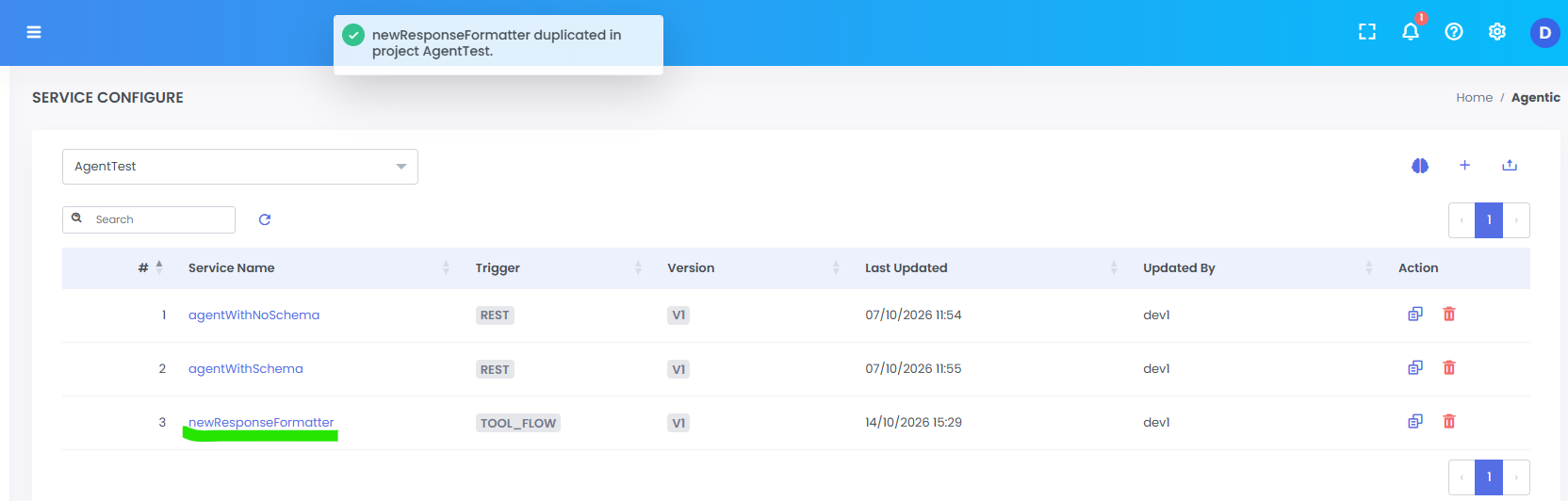
- Duplicate Error: If a service with that name already exists in the target project, an error alert will be thrown.